
Settings
Settings shape how your video looks and what Revoyse illustrates. They open by themselves before your first Generate, and any time from Settings on the bar above the player.
At the bottom: Cancel (put everything back as it was), Save, and Generate ✦ (or Regenerate ✦ once there’s a video).
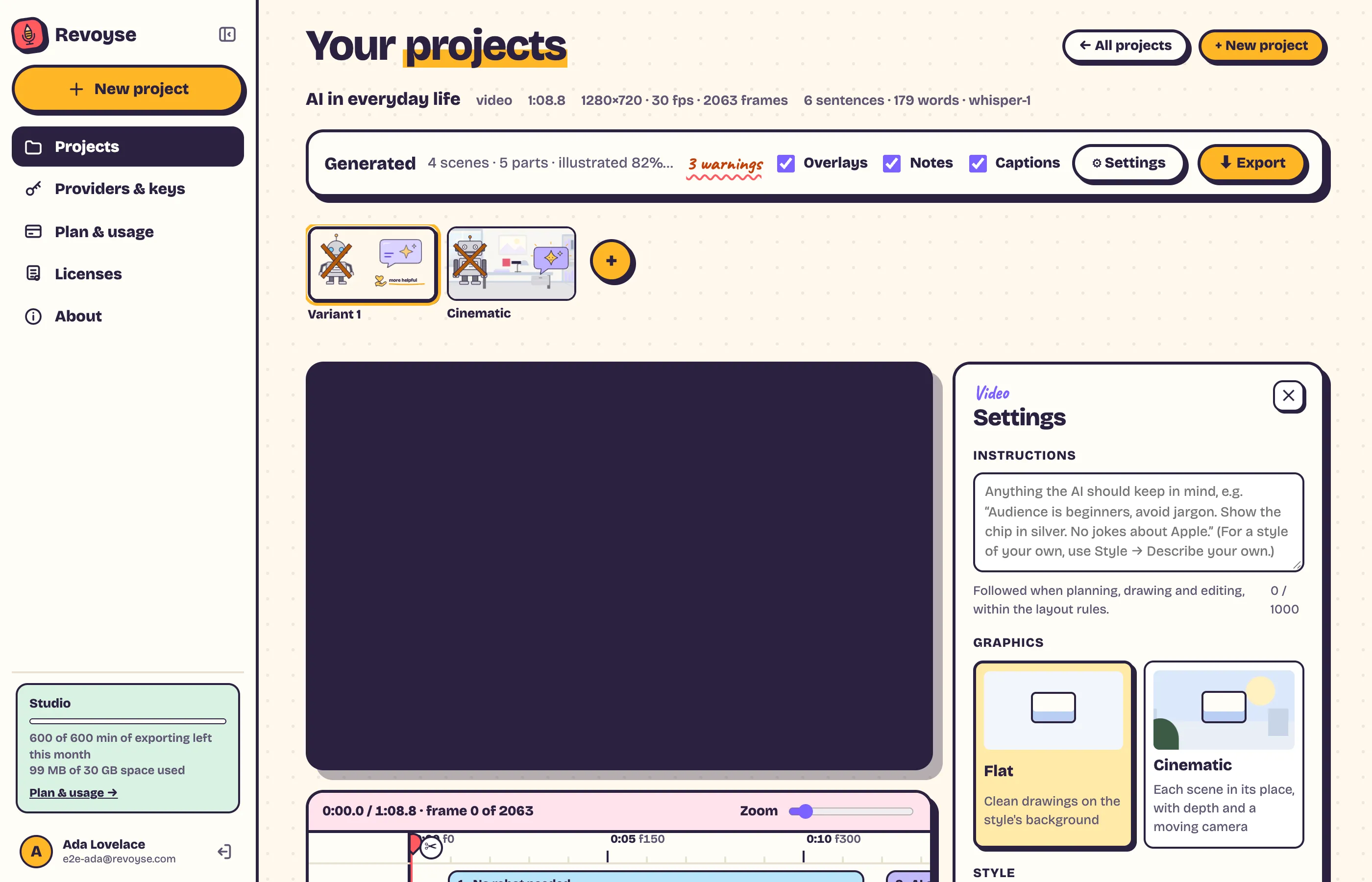
Instructions
Section titled “Instructions”Anything Revoyse should know, in your own words, up to 1000 characters. For example: “For beginners. Show the steps as a numbered list. Our product is called Lumen.” Every scene follows them.
Graphics
Section titled “Graphics”- Flat: clean drawings on the style’s background.
- Cinematic: each scene in its own place, with depth and a moving camera. Choose the Camera: Still, Gentle or Dynamic. The camera changes at once, without generating again. See Cinematic.
How everything is drawn: the background, the lines, the font and the colours. Pick a built-in style (Doodles, Whiteboard, Retro comic, Revoyse, Paper cut-out, Chalkboard) or one of My styles, or describe your own. A new style applies at once, without generating again. See Styles.
Colours
Section titled “Colours”The colours your drawings use: chosen for your video’s subject, or the classic set. You can fix a colour before generating, or swap one after. See Colours.
Standard, Playful, Calm or Energetic: how the scenes are planned and how lively the animation is.
Format
Section titled “Format”16:9 (landscape). 9:16 and 1:1 are coming.
Amount of illustration
Section titled “Amount of illustration”How much of the video is animated scenes and how much shows you talking (or, for audio, a card with what’s being said):
| Video recording | Audio recording | |
|---|---|---|
| Light | about a third | about 55% |
| Balanced | about half | about 75% |
| Heavy | about two thirds | about 90% |
Resolution
Section titled “Resolution”The export’s height: Auto (your recording’s own; 1080p for audio), 720p, 1080p, 1440p or 4K. A note tells you when it’s bigger than your recording.
Language
Section titled “Language”The language of the captions and of the words in the drawings. Change it to translate the video: see Translating.
Models
Section titled “Models”Which AI models plan and draw the video. The defaults are good; the list shows the models your keys can use. See AI keys.
When settings change after generating
Section titled “When settings change after generating”The bar says Settings changed: regenerate to apply. Style, colours, camera and resolution apply at once; the others need Regenerate.