
Watching and the timeline
The player
Section titled “The player”Play your video as it will export: animated scenes cut in while you talk, your voice runs under them, and captions show the words.
The timeline
Section titled “The timeline”Under the player, four rows:
- Scenes: each animated moment, e.g. “1 · Why plants need light · 3 parts · 5 objects · ✓ drawn”.
- Parts: the pieces of each scene, one after another.
- Sentences and Words: what you said, in time.
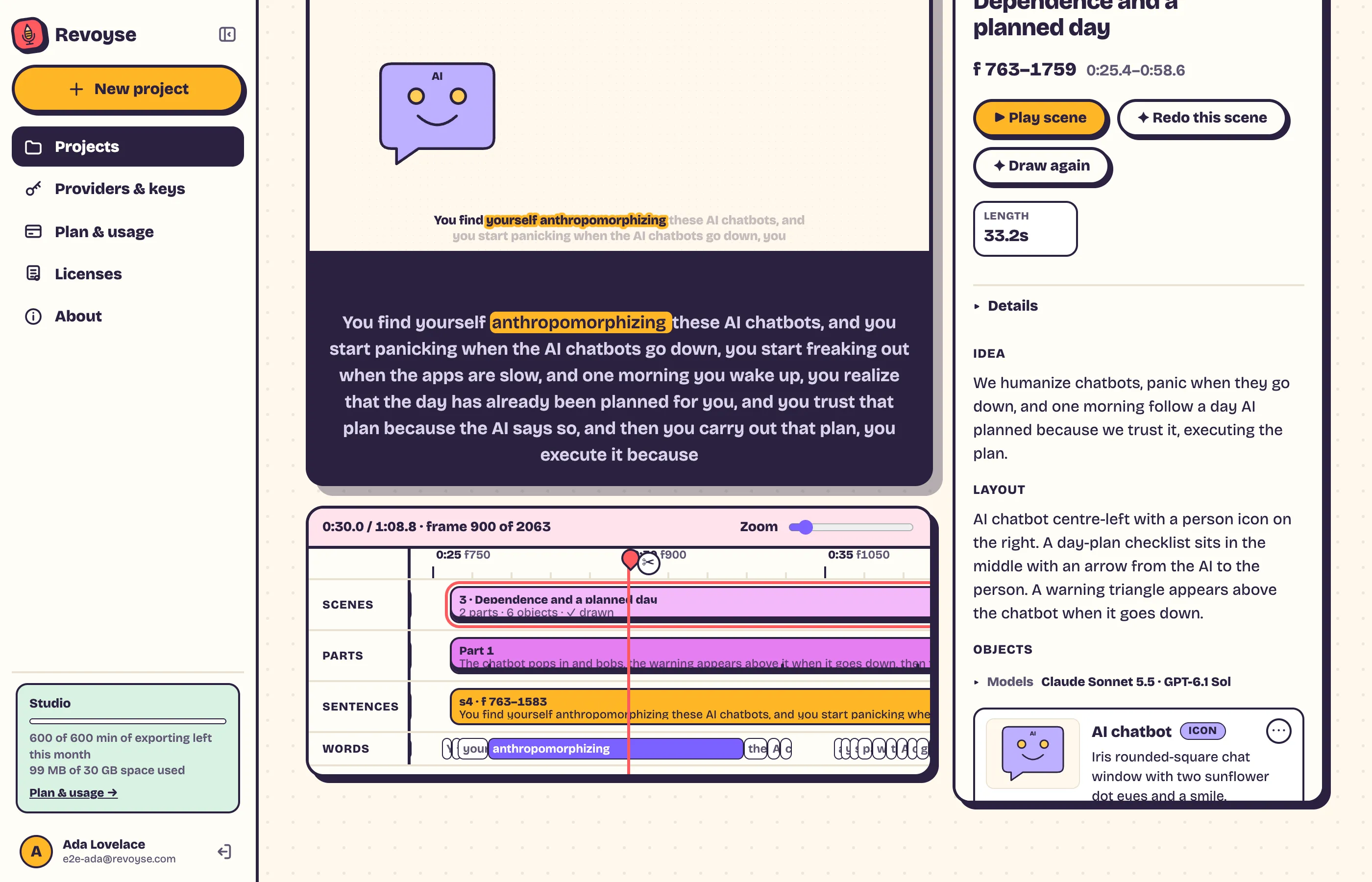
Click or drag on the timeline to move through the video; the time and frame show as you go. The slider zooms in and out. Switches above it:
- Overlays: draw the animations over the player.
- Notes: show each part’s details.
- Captions: the spoken words at the bottom of animated scenes.
A scene
Section titled “A scene”Click a scene (on the timeline, or use ← and → to move scene by scene). Its pane shows:
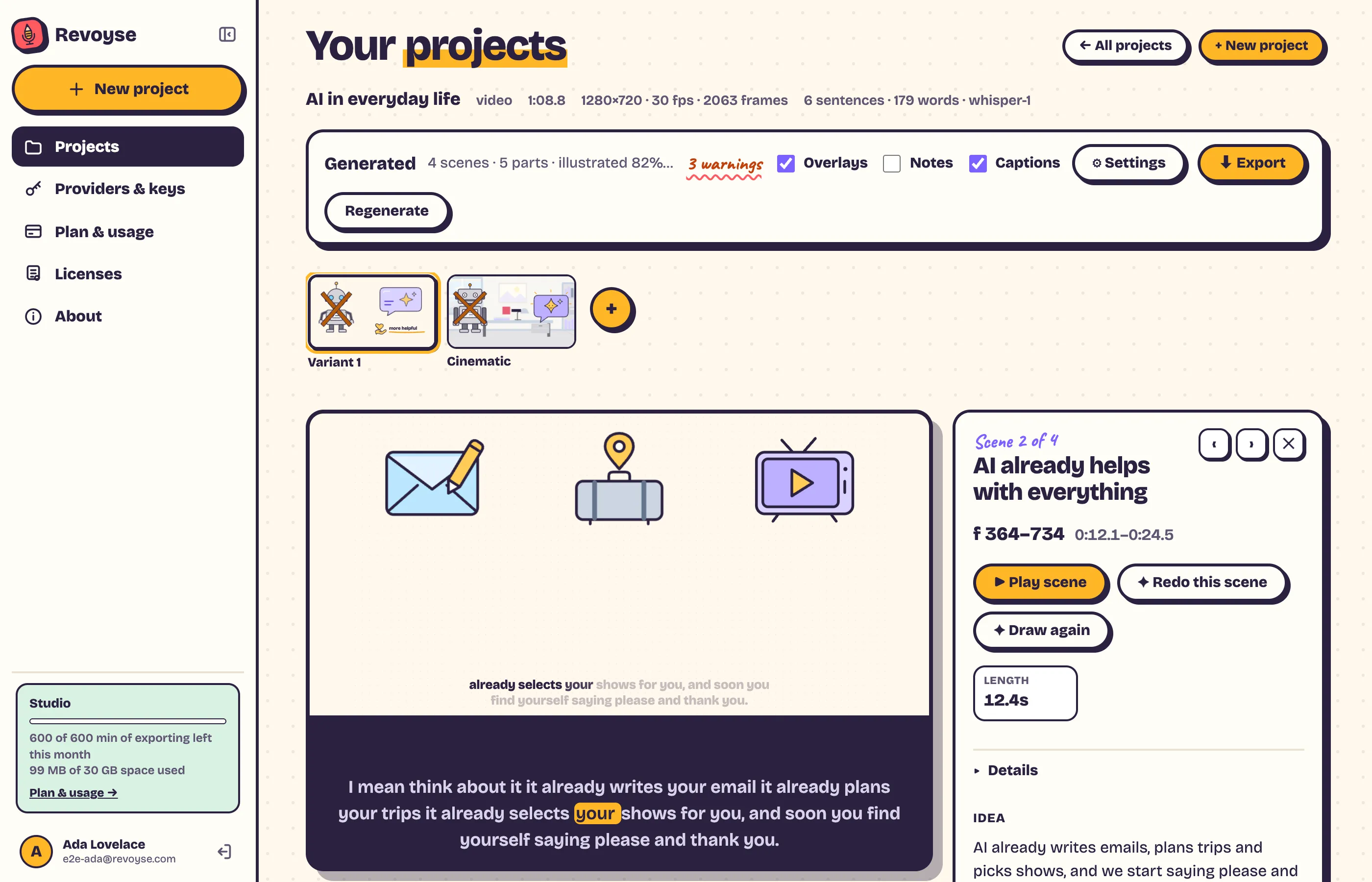
- ▶ Play scene, ✦ Redo this scene and ✦ Draw again;
- its length, the idea behind it and its layout;
- Environment, for cinematic videos;
- Objects: everything drawn in it, with when each enters (or “Never comes on screen”); + Add object;
- Parts: click one to open it.
A part
Section titled “A part”A part is one stretch of the scene. Its pane shows what kind it is:
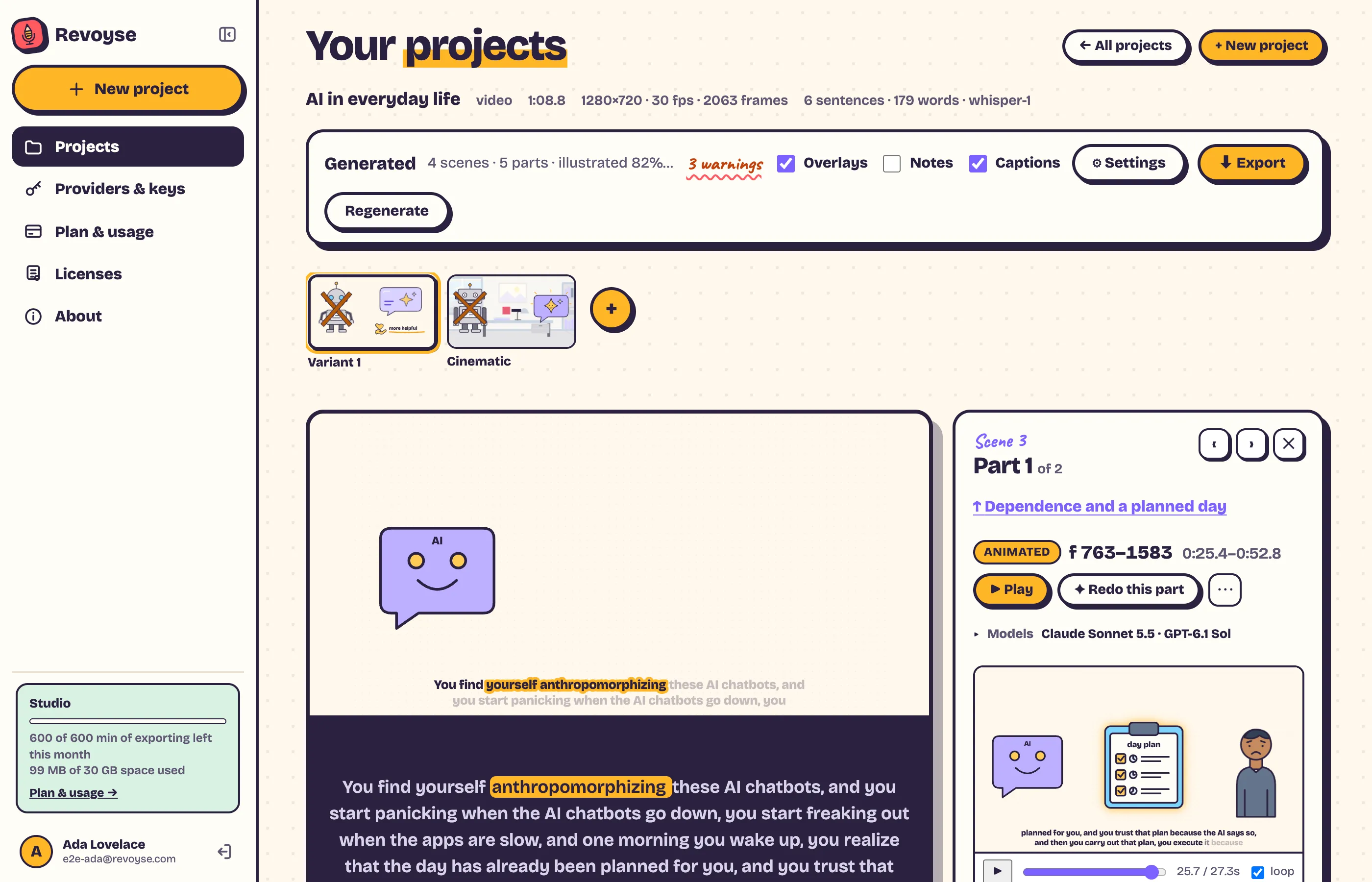
- Animated: drawings moving in time with your words;
- Speaker: your own footage (video recordings);
- Voice card: the sentence being said, on a card (audio recordings).
With ▶ Play, ✦ Redo this part, ⋯ (more), the models it uses, a preview, its length, details, Change this part and its transcript.
A speaker part that’s very short says “Too short to animate” and how long it would need to be.